
There are several ways to conduct searches, and because of the way the tools are designed, they can produce different results. Trying more than one method can often be helpful. Using a general search tool such as Google will often find spurious results from places unlikely to be helpful. For searching within the BIOS website when that is already open in your browser, there is the SEARCH box on the header bar of each page. That can often be the quickest way, though it may not find every occurrence of your keyword. For example putting Edmonds into the search box returns 21 instances.
To search within a page that is already open <CTRL>F (Windows/Linux systems) or [CMD]F (Mac) followed by the keyword may be useful.
It is also possible to do a Google search within just the BIOS website. When it is not already open on your browser, this is done by typing into the address bar of your browser site:bios.org.uk “word” where word is what you are looking for.
For example to find all references to Edmonds, type site:bios.org.uk “Edmonds”. It is worth noting this finds very many more instances of the word Edmonds on the BIOS website. Whether that is useful to you, or just creates references you may not need will depend on your purpose. To limit the search to an area less than the entire website, you can add to the URL. For example site:bios.org.uk/bios-reporter/ “Edmonds” will eliminate all results except those on that page.
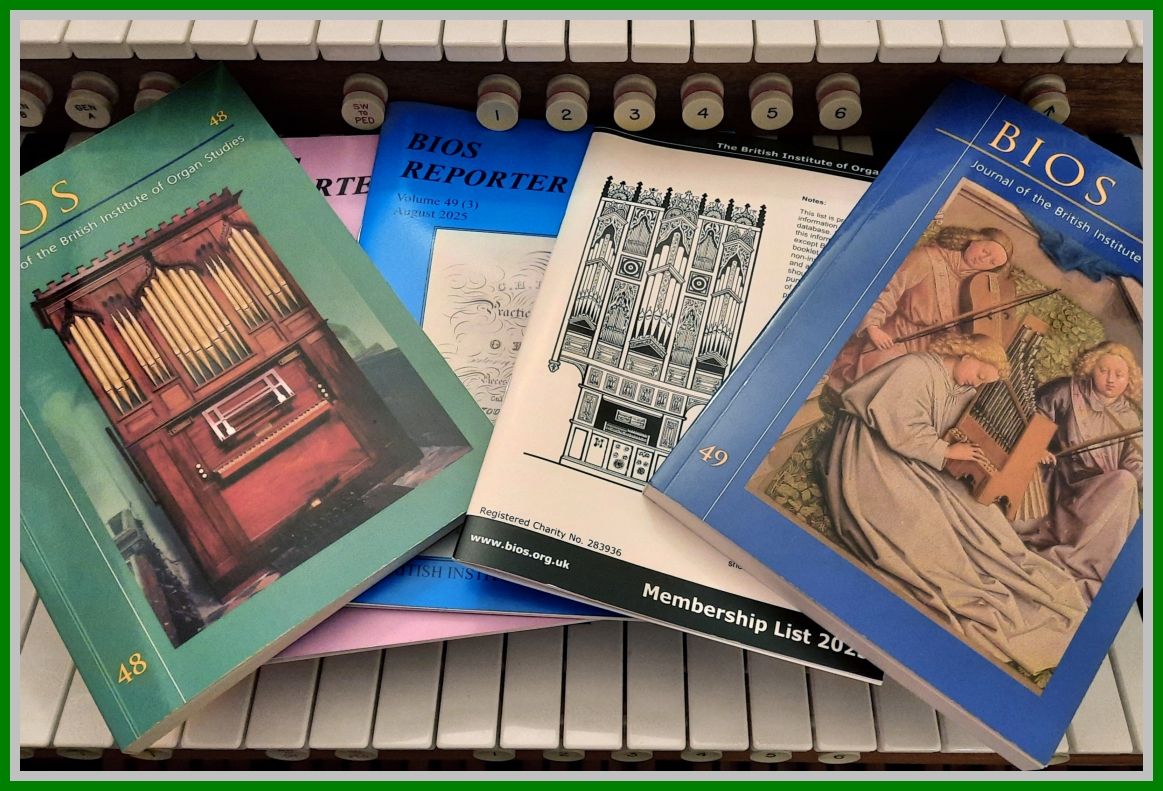
There are many PDF files on the BIOS website including a significant number of BIOS Reporter editions which can be viewed and downloaded. BIOS members can also view and download the entire archive of BIOS Journals. If you have opened these files on line, or have downloaded them to your computer, you can search within them using the search tools in your computer’s PDF viewer. Most PDF viewers <CTRL>F or [CMD]F (Mac) will function similarly to when using them on a webpage.
This can only be a general guide to some of the ways to search. The way the different methods operate changes the results they produce. It is perhaps the equivalent to having to browse more than one library to find what you seek.